How to Find Jobs on LinkedIn (UK): Search, Alerts, Easy Apply and the Jobs Nobody Advertises
In short
- Set your job preferences and Open to Work first, with "Recruiters only" if you're employed, so LinkedIn's recommendations and recruiters' searches both start working for you.
- Search with quotes, OR and NOT, then filter by the last 24 hours and "Under 10 applicants". That's how you find roles early, when your application is one of a handful.
- Turn each good search into a daily alert. You can have 20. Apply within a day or two of a posting, not a week later.
- Easy Apply is fine for roles you fit squarely. For roles you really want, also apply on the employer's site, and never submit through LinkedIn twice.
- Half the useful roles never reach the Jobs tab. Search posts for "hiring" plus your title, follow target companies, and message the person who posted the job.
LinkedIn is where most UK professional roles are advertised and where most recruiters search for people. It's also crowded: LinkedIn's own figures say about 9,000 job applications are submitted on it every minute, and Adzuna counted 2.33 jobseekers per UK vacancy in September 2026, the most competitive in two years. So it's worth learning properly rather than scrolling the Jobs tab. This guide covers the setup that makes LinkedIn work for you, the search operators and filters, alerts, the two kinds of apply button, the roles that never reach the Jobs tab, the scams, and a weekly routine that takes under an hour.
Set up before you search
Two settings decide what LinkedIn shows you and who it shows you to.
Job preferences. Job titles, locations, workplace type (on-site, hybrid, remote), start date and employment type. LinkedIn uses them for the recommendations in your feed and the "jobs you may be interested in" emails, so vague preferences mean vague recommendations. Use the exact titles you'd apply for.
Open to Work. LinkedIn's help page gives two visibility options. "All LinkedIn members", which "also includes recruiters and people at your current company" and "adds the #OpenToWork photo frame". Or "Recruiters only", for people using LinkedIn Recruiter; LinkedIn says it takes steps to stop Recruiter users at your current company seeing it, but "we can't guarantee complete privacy". If you're employed, use "Recruiters only" and make sure your current employer on your profile is linked to their company page, because that's what the exclusion relies on. If you're not employed, the frame is a plain signal and does no harm. The rest of the profile, headline, skills and proof, is covered in our LinkedIn profile guide.
Search like a recruiter
LinkedIn's search bar accepts Boolean operators. Its help page sets out five: quotation marks for an exact phrase ("product manager"), AND to narrow ("accountant AND finance AND CPA"), OR to broaden ("sales OR marketing OR advertising"), NOT to exclude ("programmer NOT manager"), and parentheses to group ("VP NOT (assistant OR SVP)"). Two rules from the same page: "you must type them in uppercase letters for the search to work correctly", and the + and - signs "are not officially supported".
| You want | Search |
|---|---|
| One job title, no near-misses | "management accountant" |
| Several titles for the same work | "customer success manager" OR "account manager" OR "client success manager" |
| A title without the senior or junior versions | "product designer" NOT (senior OR lead OR junior) |
| A skill plus a title | "data analyst" AND (SQL OR "Power BI") |
| Public sector only | "policy adviser" AND ("civil service" OR council OR NHS) |
Then filter. LinkedIn's help page lists what's available: date posted ("the last 24 hours, the past week, and the past month"), experience level, employment type ("full-time, contract, internship, volunteer, or part time"), location, company, Easy Apply ("jobs where you can apply directly on LinkedIn"), "Under 10 applicants" ("jobs that currently have less than 10 applicants"), and "In your network"; a separate help page adds that for remote roles you "select Remote" from the same filters. The combination that matters most is last 24 hours plus Under 10 applicants: roles posted since yesterday that almost nobody has seen. Run it every morning.
Three things to know about the filters. Experience level is set by the employer and is often wrong, so don't exclude "mid-senior" roles you could do. The date filter resets if you change the search, so set it last. And a role with hundreds of applicants isn't necessarily lost; it means your application has to be tailored, not generic.
Alerts: let the search run for you
Once a search is right, LinkedIn's help page says you can "create job alerts on LinkedIn to stay updated with new job postings that match your preferences", delivered "on a daily or weekly basis" by "email, app notifications, or both". Turn on the alert toggle at the bottom of the results, then open "Manage alerts" to set the frequency. "The max number of job alerts a member can have at once is 20."
Set one alert per title-and-location pair, daily, email and app. Six to ten alerts cover most searches. Then the only job is to act on them: roles you'd apply for go into your tracker the same day, tailored and submitted within a day or two. A week-old application sits behind everyone who had an alert.
Easy Apply, Apply, or the employer's site
LinkedIn's help page is clear about the difference: "Depending on the employer's settings, you'll see an Easy Apply or Apply button." With Easy Apply you complete LinkedIn's own screens and click "Submit application", and "your application is securely sent to the job poster". With Apply, you're "routed to that company's website or job board to continue the application process".
| Easy Apply | Apply on the employer's site | |
|---|---|---|
| Time | Two minutes | Ten to thirty minutes |
| What they get | Your LinkedIn profile, a CV file, answers to a few questions | Whatever their form asks: usually a CV, a cover letter and screening questions, into their own applicant tracking system |
| Changes after sending | None: "You cannot edit or withdraw an application once submitted through LinkedIn" | Depends on their system |
| Limits | "LinkedIn has introduced daily and speed limits on Easy Apply submissions" | None |
| Use it for | Roles you fit squarely, where speed matters more than a cover letter | Roles you want most, and any posting that says to apply on their site |
Two habits. First, before any Easy Apply, check the CV file attached: LinkedIn offers to reuse "your resume and answers" from the last application, which is how people send a CV tailored for a different job. Second, when a role matters, look for it on the employer's careers page too; if it's there, apply there, once. Applying through both routes is noticed, and not kindly.
The jobs that never reach the Jobs tab
A lot of hiring is decided before an advert exists, or is filled from the first few people who reach the hiring manager. LinkedIn is better at finding those roles than any job board, if you leave the Jobs tab.
- Search posts, not jobs. In the main search bar, type your title in quotes plus the word hiring ("project manager" hiring), then switch the results to Posts and sort by latest. Hiring managers announce roles in their own posts days before HR lists them, and a reply or message to the author reaches the decision-maker directly.
- Follow target companies. Pick 20 employers you'd work for. Follow them, turn on notifications for their posts, and check their page's Jobs tab weekly. You'll see roles the moment they're posted and the people who post about them.
- Use "In your network". The filter shows roles at companies where you have a connection. A short message asking that person what the team is like, before you apply, turns a cold application into a warm one, and many employers pay referral bonuses, so people are happy to be asked.
- Message the job poster. Many postings name the person who posted the job. A two-line message, after you've applied, saying you've applied and why you're a fit, gets your name read by a person rather than only parsed by a system. Two lines; not a cover letter. Our guide on how to message a recruiter has the templates.
- Ask recruiters what they're working on. Agency recruiters in your field post the roles they're filling. Follow three or four, and reply to the ones that fit. They're paid to find you, so they answer.
Spot the scams
Job scams follow the hiring crowd, and LinkedIn has its share. LinkedIn's own scam guidance lists the signs: "urgent requests to move off-platform (e.g. Whatsapp/Telegram/external forms)", "emails from generic addresses (Gmail/Yahoo) instead of @company.com", "early requests for" banking details "or ID photos before formal hiring", and being asked "to purchase your own equipment". Its rule is plain: "Do not provide payment or account credentials as part of the application process." The Disclosure and Barring Service, which has seen fake DBS checks used as the hook, lists seven signs including "a job offer without an interview", "unrealistic salary" and "being asked for money".
Three checks before you engage. Look for the verification badge on the job post, which LinkedIn says means "the company has a verified LinkedIn Page" and the poster "has verified that they work at that company"; no badge "does not necessarily mean" the job is fraudulent, but a badge is reassuring. Check the recruiter's profile has a history and real connections. And check the job exists on the company's own site. If in doubt, don't reply, and report the post or profile to LinkedIn.
Track every application, from the link
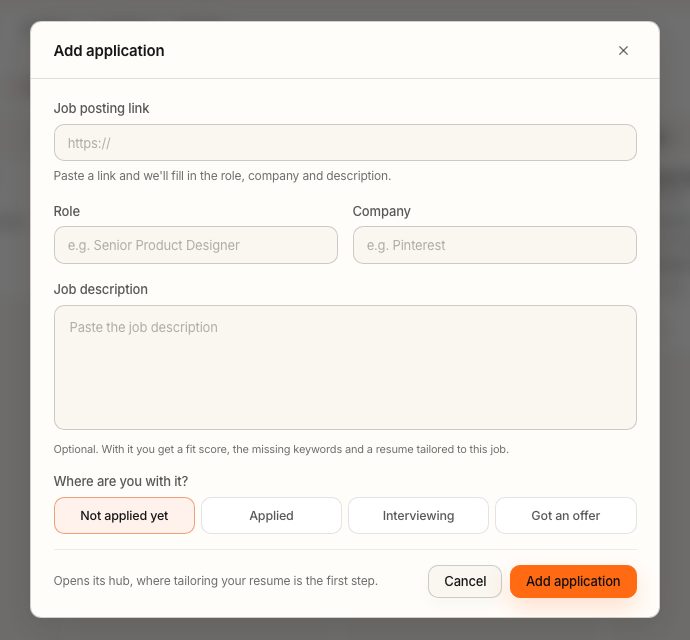
LinkedIn's "My jobs" page shows what you've applied to, but not what happened next, which CV you sent, or when to follow up. Keep your own record. Our guide on how to track job applications has a free template and the stages to use; in Applyd's application tracker, pasting the LinkedIn job link fills in the role, company and description, and the job description then drives the fit score and the tailoring.
Tailor before you apply, even on Easy Apply
Speed is the point of alerts and the 24-hour filter, but a fast generic application loses to a slower tailored one. Fifteen minutes is enough: the job's title in your headline and personal statement, its must-have skills in your first bullets, and the CV file named for the role. LinkedIn's own Skills Match insight ("x of y skills match your profile") tells you where you stand on the skills the posting lists, and lets you add missing ones to your profile. Our guide on how to tailor your CV to a job description has the steps, and the free resume check shows which must-haves the posting asks for that your CV doesn't mention.
A weekly LinkedIn routine
| When | What | Time |
|---|---|---|
| Every morning | Open your alerts. Run your best search with "last 24 hours" and "Under 10 applicants". Add anything worth applying for to your tracker. | 10 minutes |
| Same day | Tailor and apply to what you added. Message the job poster for the roles you want most. | 15 to 30 minutes per role |
| Twice a week | Search posts for your title plus "hiring". Reply to recruiters' posts that fit. | 10 minutes |
| Weekly | Check your target companies' Jobs tabs. Review your tracker: follow up what's due, close what's dead. | 20 minutes |
| Monthly | Review job preferences and alerts. Delete alerts that return nothing useful; add new titles you've seen. | 10 minutes |
Common mistakes
- Scrolling the Jobs tab. Recommendations are driven by your preferences and past clicks. Searches and alerts are driven by you.
- Applying a week late. By then the first interviews are booked.
- Easy Apply with the wrong CV. Check the attached file every time.
- Applying twice. Once through LinkedIn and once on the site reads as careless.
- Open to Work on "All members" while employed. Your manager's feed is part of "all members".
- Treating a high applicant count as a lost cause. Most of those applications are generic. A tailored one still stands out.
- Paying for anything. No real employer charges you to be hired.
Frequently asked questions
How do I find jobs on LinkedIn that were just posted?
Run your search, then use the 'Date posted' filter set to the last 24 hours and, if you want roles few people have seen, the 'Under 10 applicants' filter. Save the search as a daily alert, which LinkedIn sends by email, app notification or both. You can have up to 20 alerts.
Does LinkedIn job search support Boolean operators?
Yes. LinkedIn's help page lists quotation marks for exact phrases, AND, OR, NOT and parentheses for grouping, typed in uppercase. The + and - signs are not supported. For example: "product designer" NOT (senior OR junior).
Is Easy Apply worth using?
For roles you fit squarely, yes: it sends your profile and a CV to the job poster in two minutes. For roles you want most, apply on the employer's site, where you can add a cover letter and your application goes into their own system. Never apply both ways. LinkedIn also limits how many Easy Apply submissions you can make each day.
Should I turn on Open to Work if I have a job?
Use the 'Recruiters only' option. LinkedIn says it takes steps to stop recruiters at your current company seeing it but can't guarantee complete privacy, and the exclusion depends on your current employer being linked correctly on your profile. 'All LinkedIn members' includes people at your current company and adds the photo frame.
How do I find jobs on LinkedIn that aren't advertised?
Search posts rather than jobs: your title in quotes plus the word hiring, sorted by latest, finds hiring managers announcing roles before they're listed. Follow your target companies, use the 'In your network' filter to find roles where you know someone, and reply to agency recruiters' posts in your field.
How can I tell if a LinkedIn job is a scam?
LinkedIn's own guidance lists urgent requests to move to WhatsApp or Telegram, emails from Gmail or Yahoo addresses rather than the company's domain, early requests for banking details or ID photos, and being asked to buy your own equipment. Never pay anything as part of an application. Look for the verification badge on the post, check the recruiter's profile history, and check the job exists on the company's own site.
Sources
- Filter and sort job search results — LinkedIn Help
- Use Boolean search on LinkedIn — LinkedIn Help
- Job alerts on LinkedIn — LinkedIn Help
- Let recruiters know you're Open to Work — LinkedIn Help
- Apply for jobs on LinkedIn — LinkedIn Help
- Apply to jobs directly on LinkedIn — LinkedIn Help
- Find remote jobs on LinkedIn — LinkedIn Help
- Skills Match insight on jobs — LinkedIn Help
- Recognize and report scams — LinkedIn Help
- Verification badge on job posts — LinkedIn Help
- About us: every minute on LinkedIn — LinkedIn Pressroom
- New year jobseekers urged to watch out for 7 signs of job scams (26 January 2023) — Disclosure and Barring Service, GOV.UK
- UK Job Market Report (30 September 2026) — Adzuna